Welcome to Trakkit.org
Trakkit.org is the front-end for a track rendering engine for leisure and offshore sailing.
It lets you:
- Create, view, and share navigation tracks.
- Embed them into applications or websites.
- Share tracks via a simple web link or directly from the website’s homepage.
- Enable real-time tracking through automatic uploads of NMEA, GPX, or TEXT data via email or SFTP.
- Automatically update your position on NoForeignLand.
Trakkit.org does not collect any personal data.
🚀 Quick Start
To help you get started and quickly become familiar, follow these steps:
- Create an account (free)
- Create a Boat
- A set of sample data and a test Track has been automatically created.
- Test the sample Track by visiting:
https://<boatname>.trakkit.org - Upload your own data using a regular
.GPXfile: DATA > Upload - Create a track: TRACK > Add Track to choose which part of the data you want to display
- A TTR ID is assigned, and the track can be shared at:
https://trakkit.org/ttr/<TRACK-ID-TTR>
NB: The sample data set is automatically deleted as soon as you start uploading your own data.
📚 General Documentation
Everything in Trakkit.org revolves around three objects:
- Boat
- Data
- Track
Data is linked to a boat. A track is a segment of data between two dates.
🔧 How does it work?
It’s essential to understand that in Trakkit, data is not tied to tracks. Data can be sent continuously. Tracks simply define date ranges within which the corresponding data is visible. Deleting a track does not affect the data. Data is only visible if a track is defined to make it visible. The same data can appear in multiple tracks.
Basic structure:
- 1 User may have several Boats
- 1 Boat belongs to 1 user only
- 1 Boat can have as many Tracks as needed
- Multiple Tracks may use the same Data
- Deleting a Track does not affect the Data
🛥️ Boat
Creating a boat is the first step required to import data and associate tracks.
📝 Available Fields
- Name (required): Identifies the boat.
- Maxspeed: In knots. Used to detect potential GPS position anomalies (e.g., unrealistic speeds) and to calibrate the color scale when SOG is selected for track coloring.
- Info: An optional, purely informational field. Put whatever you want.
- Active LiveTrack: The track that will be displayed in real-time tracking. A dedicated track must be created beforehand via the Track menu, then selected here. To be eligible for LiveTrack, the track must have an end date in the future (e.g., 1/1/2050). If the field is left empty, only the last known position icon will be displayed in real-time tracking.
- Direct URL: A public web address providing direct access to the boat’s current position (and its LiveTrack if defined). It is generally recommended to use the boat name.
<boatname>.trakkit.org - Email: Address from which the tracking emails will be sent. This is overridden if a valid TAG is included in the subject of the email.
- Noforeignland Email: If you have a NoForeignLand account, add this email address as your tracking sender in your NFL account settings, and your position on NFL will be automatically updated from Trakkit.org.
- Tags: Tags are aliases for your boat. You can use them to send data, access the SFTP server, or create your own data sender. To send data through our SFTP server, create a Tag password (Boat > Tags & Mails > Edit Tag > Create Password).
Test Track: When creating a boat for the first time, a test track and a set of sample data are automatically generated. This allows you to quickly become familiar with the boat parameters and track visualization. This test track and its data will be automatically deleted upon the first import of real data.
🏷️ Tags
Tags are alternative aliases used to identify a boat. A tag’s main purpose is to grant access to a specific group of people. Deleting a tag will remove access for that group, but anyone using a different tag will still have access.
Typically, you create a separate tag for each system that feeds data to the boat. Boat > Mails & Tag > Add Tag If access to a system becomes corrupted or unavailable, simply delete the associated tag.
Available fields:
- INFO: A purely informational field to help you remember how you use the Tag. Enter anything you like.
- ALLOWED TO SEND MAIL: Check this box if you want to use the Tag to send data by email.
To feed data via companion devices or use the SFTP server, you need to create a tag with a password:
Boat > Mails & Tag > Edit > Create Password
⚠️ Make sure to remember this password, as it cannot be recovered. If the password is lost, you will need to create a new one.
- You can create as many tags as you like for a given boat.
- Tags can be shared with groups or individuals to grant access.
- A tag can be deleted at any time without impact on Boats, Tracks or Data.
- Tags can be used to send data by email from any email address, by simply putting the tag in the subject line. In this case, the tag must be authorized beforehand and should only be shared with the relevant entities.
- Tags with passwords can be used to access the SFTP server.
🗺️📍 Data
Once a Boat has been created, you can feed Trakkit.org with data for this Boat.
What is DATA?
Data consists of GPS coordinates, date and time, along with any available sensor information such as AWA, AWS, etc. It is stored in the Trakkit database and used to create the different Tracks.
Data can take several forms:
- A GPX file generated by a GPS device or exported from apps like Navionics Boating
- A NMEA 0183 file traffic directly issued from your navigation system (GNSS messages from GPS, Galileo, and GLONASS are recognized). Preferred method when used with the companion app for real-time tracking.
- A plain TEXT file.
- A CSV file with field names on the first line, as commonly exported by applications such as OpenCPN or QtVlm.
CSV:
Separator:
Supported field separators are comma (,), semicolon (;), pipe (|), or TAB, provided there is no ambiguity with the data format (for example, decimal separators). If the format cannot be interpreted unambiguously, the file will be rejected.
Mandatory fields:
- DATE (ISO 8601 format - Timezone-naive values are assumed to be in UTC)
- LAT
- LON (in decimal degrees)
Optional fields:
Additional fields may be provided: AWS, AWA, COG, SOG, TWA, TWS, MTW, MTA, HDG, TWD, CTW, MBP, STW, DEPTH, RPM, ELEV. Speeds in knots, angles in degrees, depth in meters, temperature in Celsius. Any field marked as (calc) will be ignored, as Trakkit is designed to ingest only raw data directly produced by onboard navigation systems. Unrecognized fields are ignored.
Example valid CSV DATA:
  DATE;LAT;LON;SOG;COG;AWA;AWS;DEPTH;MTW
  2026-04-21T08:00:00Z;44.8500;-55.2167;5.2;145;32;14.5;120;12.4
  2026-04-21T08:05:00Z;44.8485;-55.2135;5.4;147;30;15.0;118;12.5
  2026-04-21T08:10:00Z;44.8470;-55.2103;5.6;149;29;15.6;115;12.5
A full reference to the CSV format and its variants can be found here.
TEXT:
A regular plain text file (or the body of an email), with one position per line.
Example valid TEXT DATA:
20260814 103025 48.12345 -4.56789   # UTC implicit
2026-08-14T12:30:25+02:00 48.12345 -4.56789
For historical reasons and compatibility with legacy Iridium GO text formats, Trakkit’s older TEXT formats remain supported but are deprecated. From now on, only the CSV format should be used.
A full reference to the TEXT format and its variants can be found here.
NMEA:
Example valid NMEA183 sentences:
$GPRMC,000003.199,A,4408.04134,N,03341.96985,W,6.86,103.55,130623,,,D*70
$WIMWV,87.99,R,21.18,N,A*26
How to send DATA:
You can send Data in different ways at different times. With an internet connection at sea, you can send data in real time. Otherwise, just save a GPX, NMEA, or TEXT file from your GPS or navigation system and upload it later when you’re back online. The order, date, and time of data transmission do not matter; only the timestamps contained within the data are relevant. Uploading the same data multiple times does not affect or corrupt your Data. Here are the different ways to send your data:
Whatever upload method you choose, all Data can be compressed in: .zip .gzip .z .xz .7z .tar .tgz
📤 By direct Data upload to Trakkit.org:
One of the easiest ways is to log in to Trakkit.org, DATA>UPLOAD and upload your GPX, NMEA or TEXT file exported from a navigation apps or GNSS device.
📡 By SFTP:
You can send your files to the Trakkit SFTP server, which is the recommended method for automated data transfers and large files.
Credentials & server address are provided when you request a tag password on Trakkit.org: BOATS > Mails & Tags > Create Tag Password
Restrictions (fair use policy): Maximum upload frequency: 1 connection every 3 minutes. Maximum file size: 50 MB per upload. Failure to follow these recommendations may result in restrictions on upload access, or even a permanent ban from Trakkit.org. Note that 50 MB of compressed data can store over 24 hours of full NMEA traffic.
Once connected, simply upload your data to the /upload directory.
Uploaded files must follow this format: TAG_YYYYMMDD_HHMMSS.data
Note: TAG must match the Tag credential used for the connection.
➡️ By doing manual upload, it is strongly recommended to first upload the file with the extension .part (e.g. TAG_YYYYMMDD_HHMMSS.gz.part)
and then rename it to .data once the transfer is complete. This ensures the file will not be processed before the upload is fully finished. Compress your files to save bandwith (e.g., .zip, .gzip, .z, gz, .xz, .7z, .tar, .tgz).
You can use the Python script sftp_send.py, available on Trakkit.org under About > Downloads, which automates uploads while following the recommended settings.
✉️ By Mail:
Mails have to be sent to spool@trakkit.org
You must either include a Tag in the subject of your email, or link your email address to your boat on Trakkit.org before sending by mail. This allows Trakkit.org to associate the data with the correct Boat.
If you use a Tag in the subject of your email, you must first allow this Tag to send mail (BOATS > Mails & Tags > Edit > Allowed to send mail). Emails received with a Tag that is not allowed will be ignored, even if the sender’s email address is already linked.
Assignment Rules:
- If the sender's email is linked to a BOAT on Trakkit.org, the DATA will be assigned to that boat.
- If a TAG alias allowed to send mail is specified in the Subject line of the email, the DATA will be assigned to the boat associated with that Tag.
- In case of conflicting information, the Tag over the email.
- You can send the data as a file attachment or write it in the message body
Note: Email is not the recommended method, as most providers strictly limit message and attachment sizes and may reject them without notice. This method should be reserved for small text data or low-bandwidth trackers such as Iridium GO. Compress your files to save bandwith (e.g., .zip, .gzip, .z, .xz, .7z, .tar, .tgz).
🗑️ Deleting Data
To delete data:
- Use the Data > Delete menu
- Delete by date range or BatchID
- Every upload has a BatchID; removing a batch only deletes that data chunk
- Deleting a track does not delete the data.
🗂️ Batches
Each time data is uploaded, a Batch ID is assigned. All data uploaded in a single operation share the same Batch ID.
For example, if you upload 10,000 position points at once, they will all have the same Batch ID.
The main purpose of the Batch ID is to identify data uploaded together from the same device and to allow deleting the entire upload in a single operation. This can be useful in cases of faulty devices or corrupted data.
Note: Uploading the same data multiple times is supported and does not require manual deletion using the Batch ID.
Batch IDs are retained for at least one year after creation. After that, the data is considered valid, and the Batch ID may be removed.
🗺️ TRACKS:
Unlike other navigation systems, a Track in Trakkit is simply a named slice of time within a set of Data.
You define the start and end times and give it a name.
Trakkit will check if any corresponding Data is available for that interval and display it if so.
If no data is available, nothing will be shown. Later, if Data matching the track’s interval is uploaded, the Track will be automatically updated.
A Track can also be manually updated via TRACK > Regen.
- BoatName: The boat to which the track should be associated.
- TrackName: Displayed name of the track.
- Start/End: Start/End: Start and end date/time. The default time zone is the one selected in your Profile.
- Color: Choose the color of the track. In addition to the standard fixed colors, you can choose a multicolor mode for your track based on the boat speed (SOG) or the apparent wind speed (AWS). SOG is calculated automatically, but for AWS you must have provided it in your data, typically by uploading NMEA sentences.
- Default Layer: The map foreground layer to use. The default is OSM SRTM Topographic. Note that tile availability may vary, especially for those provided by U.S. agencies (NASA, NOAA, etc.), due to funding restrictions affecting these services in the United States.
- WPO: Interval in minutes for the progress points (the orange points).
- WPP: Interval in seconds for the track points (Track precision).Warning: setting too high a precision can dramatically slow down the rendering, track loading and visualization. Use common sense and adjust the precision based on the type of track: “60 for coastal navigation, 300 for offshore navigation, and 600 for long passages” are good guidelines. For real-time tracking (LiveTrack), this should never be set below 300 seconds. Once the track and navigation are finished, you can regenerate the final track with higher precision if needed.
- Published: Check this if you want to list the track in the "TRACK LIST" visible on your boat page at https://
.trakkit.org - Public: When enabled, the track appears in the public track list displayed on the boat's live page. When disabled, the track is not listed but remains accessible directly via its Track ID (TTR).
- Reminder: Deleting a Track does not delete the Data.
We strongly advise you to set the start and end date/time of your track so that your exact departure and arrival points are not permanently displayed
Track Status Indicators
Tracks may display a colored light indicator showing their LiveTrack status:
- 🟢 Green (steady): Active LiveTrack.
- 🟢 Green (blinking): LiveTrack scheduled to start in the future.
- 🟠 Orange (blinking): LiveTrack candidate — the Track is active or scheduled but is not currently selected as the Boat's LiveTrack.
- 🔴 Red (blinking): Expired LiveTrack — the Track is still selected as the Boat's LiveTrack, but its end date has passed.
- 🔴 Red (steady): Track with no data
Visualizing a Track
- Direct link:
https://trakkit.org/ttr/<TRACK-ID> - From the home page with the
TRACK-ID - Tracks are rendered statically and only automatically refreshed when new data is imported
- Can be manually regenerated (TRACK > Regen)
You can integrate a responsive link into your own page or website by using the direct URL provided in your boat section:
    <div class="iframe-container">
      <iframe src="https://trakkit.org/ttr/<TRACK-ID>"
              title="My Track on Trakkit"></iframe>
    </div>
Note: Depending on the rendering engine used to generate a track, the displayed URL may vary. However, you should always use the format https://trakkit.org/ttr/<TRACK-ID> to access a track, even if Trakkit later renames or redirects it internally.
Visualizing Real-Time Tracking
In Boat > Edit > Direct URL, choose a URL for your boat (usually the boat name).
You can view your boat’s position directly at:
https://boatname.trakkit.org
Where 'boatname' is the name given in Direct URL.
If a LiveTrack is enabled (Boat > Edit > Active LiveTrack), the boat’s track will also be displayed. Otherwise, only the last known position will be shown.
The default live tracking page displays nav info and buttons giving access to the Live Weather Map, the Track List (for tracks flagged as Public), and the Full Screen view. Please note that live weather data is provided by a third-party service, may be unavailable beyond our control, and is not guaranteed to be accurate.
You will probably prefer using a full-screen view without the data panel inside the frames embedded in your own website or web pages. You can open a full-screen view directly using the following URL:
https://trakkit.org/live/simple/boatname
You can embed the live tracking view (or any other track) directly in an iframe on your own website or personal page.
For example, to embed https://boatname.trakkit.org, use the following HTML:
<iframe
    src="https://boatname.trakkit.org"
    width="100%"
    height="600"
    style="border:0;"
    allowfullscreen>
</iframe>
Note: Adding or deleting data automatically triggers an update of all tracks affected by the corresponding time range.
Multi-Tracks
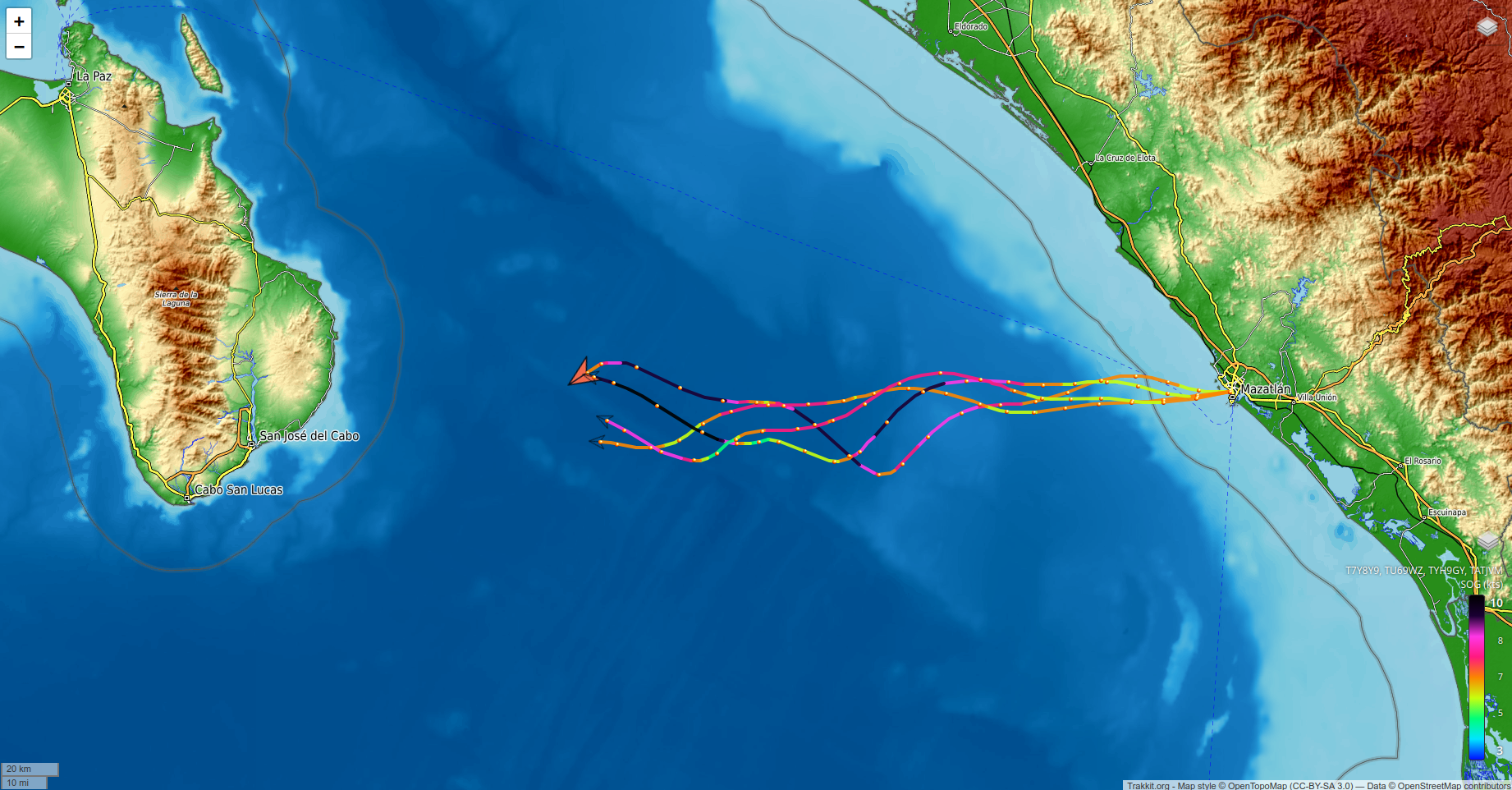
Multi-Tracking allows multiple Tracks, belonging to the User or not, to be displayed on the same map. It can be used to follow a fleet, to compare a Track with a routing reference, follow several Boats, combine separate Track segments.
- Name: Multi-Track name.
- Default Layer: Default map background.
- Public: When enabled, the Multi-Track appears in the Track list on the Boat's Live page.
Once a Multi-Track is created and saved, Tracks can be added or removed to this Multi-Track. You can select your own Tracks or add an external Track using its TTR.
A Multi-Track cannot contain another Multi-Track. Deleting a Multi-Track does not delete its individual Tracks.
Multi-Tracks are accessed and displayed like regular Tracks.
If LiveTracks are included in a Multi-Track, the icons of the corresponding boats are also displayed.
A Multi-Track can be set as a boat's LiveTrack, provided that it contains the LiveTrack associated with that boat.
The free public version of Trakkit requires every LiveTrack display to be associated with a reference boat. For live tracking of an entire fleet during events such as regattas, drone battles, or similar competitions, please contact us in advance.
Note: Color scales may differ between Boats, as they depend on each Boat's MaxSpeed. When scales differ, each scale is displayed separately. Keep these differences in mind when comparing Tracks and interpreting their colors.
 NoForeignLand
If you have a NoForeignLand account, Trakkit can automatically send your position to update your location on the NoForeignLand website.
To enable this feature, add the Trakkit sending address (something like nfl_xxxxx@trakkit.org) assigned to you in Boat > Mails & Tag > NoForeignLand to the email synchronization settings of your NoForeignLand account.
Once this address has been registered on NoForeignLand, click “Activate” in Trakkit. Your position will then be sent by email at regular intervals. The sync can be deactivated here at any time.
⚠️ Please note that NoForeignLand does not use GNSS timestamps; instead, the timestamp recorded corresponds to the time of synchronization. Position updates are performed at most every 6 hours.
💻 Companion App
A companion app is a third-party application that collects and sends data to Trakkit.
The Python-based code for "joli_compagnon," Trakkit’s standard companion application, is freely available and can be easily adapted to your setup. It can be downloaded from Trakkit.org > About > Download Tools.
You can setup a complete, self-contained tracking solution using a simple Raspberry Pi or any other mini-computer. The full setup process is described in the following guides: DIY Tracker with USB GPS and DIY Tracker with NMEA Gateway.
This is the preferred solution for real-time tracking.